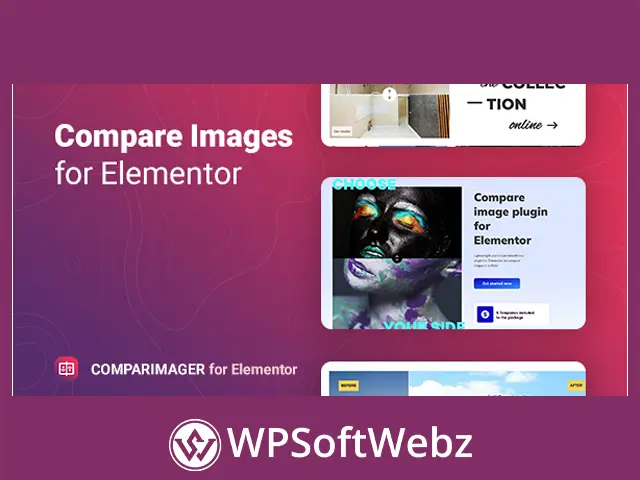

Comparimager – Before and After Image Compare for Elementor is a premium WordPress plugin that helps you present two images in an interactive comparison slider. Designed specifically for Elementor, it provides an effective way to showcase transformations, improvements, product differences, service results, and visual changes without requiring custom coding.
The plugin combines a lightweight design with flexible styling controls, horizontal and vertical comparison layouts, multiple interaction methods, customizable labels, overlays, and responsive settings. You can add multiple image comparisons to the same page and configure each slider directly through the familiar Elementor interface.
Comparimager – Before and After Image Compare for Elementor
Comparimager adds a dedicated before-and-after image comparison element to Elementor. After placing the widget on a page, you can upload the two images you want to compare and configure how visitors interact with them.
A draggable comparison line reveals more or less of each image, creating an engaging visual experience that communicates differences more clearly than two separate static images. This makes the Elementor image comparison plugin useful for businesses and creators whose work is best demonstrated visually.
Create Interactive Before-and-After Image Sliders
Comparimager places two images inside one interactive slider. Visitors can move the comparison handle to reveal the before image, the after image, or a selected portion of both.
This format helps website visitors understand changes immediately. Instead of switching between images or examining separate galleries, users can compare both states within a single visual element.
The plugin can be used to display:
- Before-and-after service results
- Product improvements and upgrades
- Photo editing transformations
- Interior design renovations
- Building and construction projects
- Beauty and cosmetic results
- Cleaning and restoration work
- Image retouching examples
- Landscaping projects
- Website or interface redesigns
- Color correction comparisons
- Creative portfolio transformations
Horizontal and Vertical Image Comparison
Different images require different presentation styles. Comparimager supports both horizontal and vertical comparison lines, allowing you to select the orientation that best suits your content and page layout.
Horizontal Comparison
A horizontal configuration divides the images from side to side. This layout is commonly used for portraits, product photography, interior transformations, and other images where visitors should compare the left and right portions.
Vertical Comparison
A vertical comparison reveals the images from top to bottom. It can be useful for landscape images, page designs, architectural work, and compositions where horizontal movement would not communicate the change as effectively.
The ability to switch between orientations makes the plugin adaptable to a wide range of visual comparison projects.
Multiple Handle Interaction Options
Comparimager provides several ways for visitors to control the before-and-after slider. You can choose an interaction method that matches the expected behavior of your audience and the design of your website.
Available movement options include:
- Hover – the comparison line follows pointer movement
- Click – visitors click to reposition the comparison handle
- Swipe – users drag or swipe the control to reveal each image
Swipe-based interaction is particularly useful for responsive pages viewed on touchscreen devices. Hover and click controls provide convenient alternatives for desktop visitors.
Customize Before and After Labels
Clear labels help users understand which image represents the original state and which image represents the completed result. Comparimager includes customizable before-and-after text that can be adjusted to suit the context of your comparison.
Instead of using generic labels, you can add wording that matches your content, such as:
- Original and Edited
- Before and After
- Old and New
- Unretouched and Retouched
- Previous and Updated
- Standard and Enhanced
- Without Treatment and With Treatment
Label styling can be managed through Elementor, helping the text match the typography, color scheme, and visual identity of the surrounding page.
Control the Initial Comparison Position
The plugin includes a default line offset option that determines where the comparison handle appears when the page first loads.
Placing the handle near the center gives both images similar visibility. Moving the starting position toward one side can emphasize a particular image while still allowing visitors to reveal the complete comparison.
This setting gives you greater control over the first impression created by each before-and-after image slider.
Image Overlay Options
Comparimager supports image overlays that can help labels, icons, and controls remain visible over different photographs. Overlay styling can also contribute to the overall visual presentation of the comparison element.
This feature is useful when working with images that contain varied colors, bright highlights, or dark areas. A properly configured overlay can improve visual consistency and make interactive elements easier to recognize.
Flexible Elementor Styling Controls
The plugin provides styling options within the Elementor interface, so you can customize the comparison widget without writing CSS or modifying template files.
Depending on the selected element, available design controls include:
- Colors
- Typography
- Text shadows
- Background colors
- Borders
- Margins
- Padding
- Text offsets
- Line offsets
- Navigation icon appearance
- Comparison handle styling
- Image dimensions
- Slider height
These controls make it easier to integrate the image comparison widget with an existing WordPress design. You can create subtle sliders for professional portfolios or more noticeable comparison sections for promotional and landing pages.
Customizable Image Size and Slider Height
Comparimager allows you to select the image size used by the widget and define the height of the comparison area.
Controlling these dimensions helps maintain a consistent layout across your website. It also allows the slider to work in different Elementor sections, including full-width presentations, standard content areas, portfolio grids, and compact page blocks.
For the best visual result, the two comparison images should generally use matching dimensions and show the subject from a similar position.
Navigation Icon Management
The comparison handle serves as an important visual cue, showing visitors that the images can be moved or revealed. Comparimager includes icon management options that let you adjust the navigation elements used within the slider.
By coordinating the icon appearance with the comparison line, labels, and surrounding design, you can create a more polished and intuitive interactive element.
Add Multiple Comparisons to One Page
Comparimager supports an unlimited number of image comparisons on a single page. This is useful for service galleries, case studies, project portfolios, and landing pages that need to demonstrate several results.
For example, a renovation company can display individual comparisons for a kitchen, bathroom, living room, and exterior project. A photographer can present separate examples of portrait retouching, lighting correction, color grading, and object removal.
Each comparison can be configured independently, allowing different images, labels, orientations, offsets, and styles throughout the same page.
Responsive Before-and-After Comparisons
The plugin includes responsive settings to help image comparisons work across desktop, tablet, and mobile layouts.
Responsive controls are especially important for visual content because a slider that looks balanced on a wide desktop screen may need different dimensions or spacing on a smartphone. Elementor’s device-oriented design workflow allows you to review the widget within different screen contexts and refine its presentation.
Swipe interaction also creates a natural experience for visitors using touch-enabled devices.
Translation and RTL Support
Comparimager supports multilingual website projects and includes a translation file for localizing plugin text. Custom before-and-after labels can also be entered in the language used by your website.
The plugin supports right-to-left direction, making it suitable for websites that use RTL languages and layouts.
These localization features can help agencies and site owners use the Elementor comparison widget across international and multilingual projects.
Compatible with Elementor-Based WordPress Themes
Comparimager is designed to work with WordPress themes built around Elementor. Its settings are available through Elementor’s visual editor, allowing the widget to fit naturally into existing page-building workflows.
The plugin supports major modern browsers, including:
- Google Chrome
- Mozilla Firefox
- Apple Safari
- Microsoft Edge
- Opera
This broad browser support helps provide a consistent comparison experience for visitors using different devices and browsing environments.
Lightweight and Easy to Configure
The plugin is designed as a focused Elementor add-on rather than a large collection of unrelated widgets. Its purpose is to provide a straightforward before-and-after image comparison feature with flexible visual controls.
After installing and activating the plugin, you can add its comparison widget through Elementor, select your images, choose the desired interaction behavior, and customize the design from the editor.
No additional coding knowledge is required for standard setup and styling.
Benefits of Using an Elementor Image Comparison Plugin
Visual comparisons can communicate results faster than long explanations. They allow potential customers to inspect changes directly and form their own impression of the improvement.
Key benefits include:
- Presenting transformations in an interactive format
- Keeping two related images aligned in one element
- Encouraging visitors to engage with page content
- Demonstrating service quality through visual evidence
- Improving portfolio and case study presentations
- Supporting desktop and touchscreen interaction
- Matching the slider design to an existing Elementor website
- Creating multiple comparison sections without custom development
Ideal for Service Businesses and Creative Portfolios
Comparimager can be particularly valuable for businesses that sell a visible result.
Photographers and Retouchers
Display original photographs beside edited versions to demonstrate retouching, color correction, background adjustments, or lighting improvements.
Designers and Creative Agencies
Compare old and redesigned logos, interfaces, websites, advertisements, or other creative assets.
Renovation and Construction Companies
Show properties, rooms, buildings, and outdoor spaces before and after completed work.
Beauty and Wellness Professionals
Present suitable visual examples of treatments or styling services while ensuring that all content follows applicable advertising standards.
Cleaning and Restoration Services
Demonstrate the difference created by cleaning, repair, detailing, restoration, or maintenance work.
Online Stores and Product Brands
Compare product variations, materials, finishes, upgrades, or improvements through an interactive product image display.
Build More Engaging Visual Comparisons
Comparimager – Before and After Image Compare for Elementor is designed for WordPress users who need a customizable and responsive way to compare two images. Its horizontal and vertical layouts, multiple handle controls, editable labels, image overlays, icon management, translation support, and Elementor styling options make it suitable for portfolios, service pages, case studies, product presentations, and promotional content.
Choose Comparimager – Before and After Image Compare for Elementor to turn static transformation images into interactive comparisons that help visitors see the value of your work.